Data Loader
Introduction
Use Data Loader to add, update, and delete data in AdaptiveWork by uploading Excel (xls, xlsx) or csv files. The data can include work Items such as projects and tasks, other AdaptiveWork objects such as reviewers and resources, and even custom fields. You can also upload complete work plans using the full hierarchy of items.
You also have the option to roll back uploaded data if needed.
NOTE
The Data Loader uses API calls for its functionality and therefore adheres to the API governance and specifications defined by AdaptiveWork.
How it Works
The process includes 2 stages:
- A file is uploaded using the Data Loader, which contains the data to be inserted or updated. The data is then verified with pre-load validations. Data is still not in AdaptiveWork.
- Once validated, an email is generated and sent to the User who performed the upload procedure, and a task with the load details opens on a default upload project within the organization. The task will typically come with a few attached documents including the original load file with the data, an Errors/Messages file from the load, and an Undo file to undo the transaction.
TIP
To avoid "update blocks" due to insufficient permissions, it is strongly recommended that the user who performs the upload procedure be an Admin User, Super User, or Financial User.
Adding Data
The process includes preparing the Excel/CSV file, uploading the file, receiving the validation, and finalizing the process.
About the field data:
-
The field names specified in the Header row can contain the API name or the field screen name
-
Custom fields of all types are supported the same way as AdaptiveWork system fields are
-
The special type field formats (such as Duration and Money) are identical to those within AdaptiveWork
-
Reference to item fields (Users excluded) are mapped by the ExternalId, Sysid, or name (as last resort)
-
Reference to User fields are mapped by the ExternalId, email address, Display name, and User name
- Reference to items in link fields (Resources, Reviewers, Customers etc.) operate with the same logic as regular reference to item fields with a comma separator
- Download the Data Loader from the following link and then install it: https://www.planview.com/products-solutions/products/adaptivework/data-loader/.
- In Excel, add the item properties in the first row. For example, for Users, properties include first and last name.
- In subsequent rows, add the items.

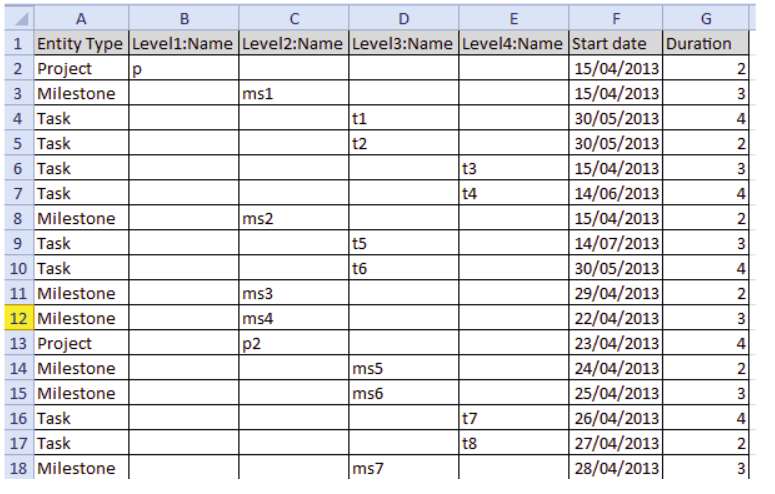
- For WBS or work plan, under the EntityType column header, add the relevant Item Types, such as Project or Milestone. The following columns contain the details such as name, start date, etc. A Level prefix defines a sub-level. For example, if the project is a sub-project, then the name will appear under the column with the prefix Level2:Name.
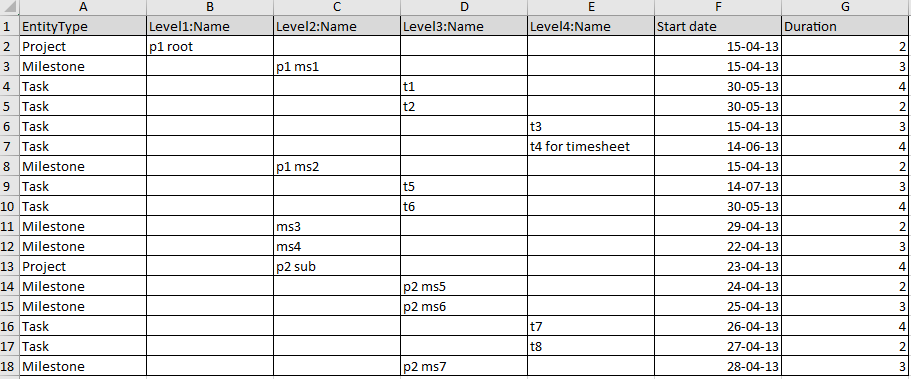
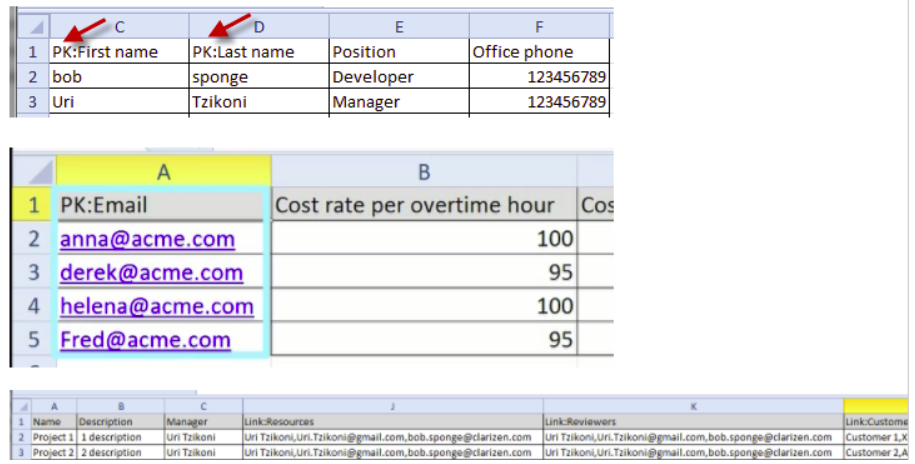
- For Reviewers and Resources items, add Link: to the prefix of the column header, for example: Link: Reviewers. You can add multiple values using comma delimiters between them.
About adding picklist values
You must add the new picklist values under the ExternalId column, rather than under the Description column. Add the ExternalId column to your file if it does not exist.
- In AdaptiveWork, from the main menu, click Custom Actions > Data Loader.
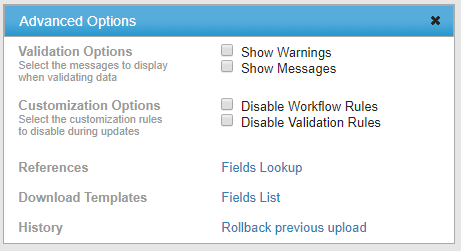
- Select the Item Type from the drop-down list. Click Advanced to see more options, and to download the field descriptions to get all possible fields for the object type.
- Fields Lookup - See a list of fields in rows
- Fields List - See a list of fields in columns, can be used to upload data
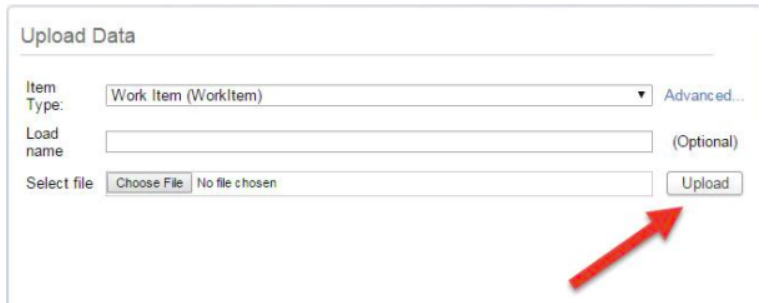
- Provide an optional name for the loading process.
-
Select your file and click Upload. The data is verified and results are displayed.
-
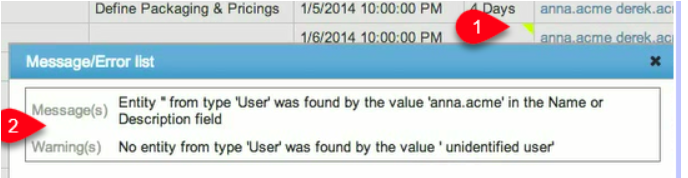
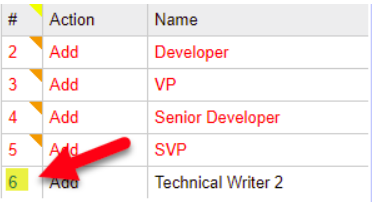
To view issues that require fixing, click on the yellow triangle.
-
To see all messages, click to download the file.

- Click Update AdaptiveWork.
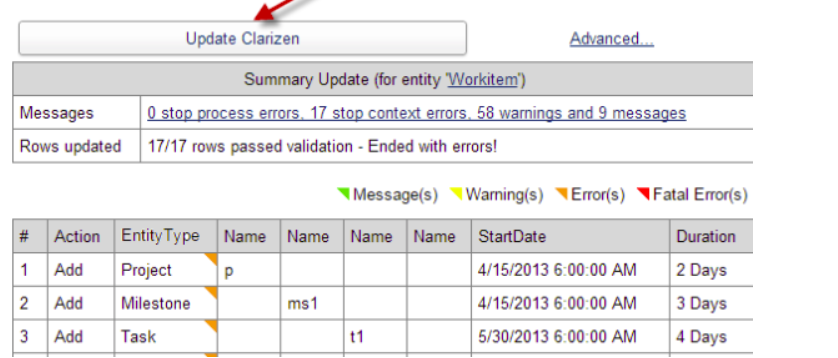
You will now receive an email confirming the data has been uploaded to AdaptiveWork. - To open the new item in the Data Loader, click the item link.
The first time you upload data, a project is created and within it a task for each data upload.
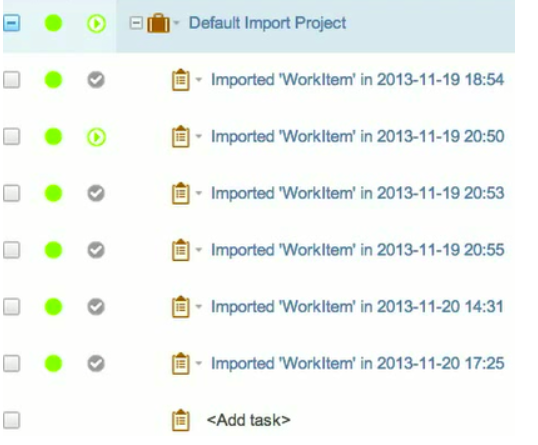
Each task includes attached files for the original import list, error logs and the undo transaction list.
Rolling Back an Upload
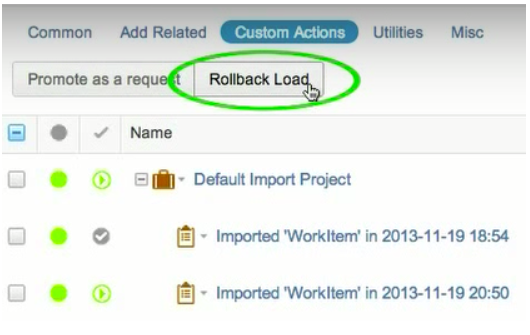
To undo a transaction, select a task and then click Custom Actions > Rollback Load.
Updating Data
Update existing records in AdaptiveWork-specific tables (item types) using the item type identifier. You must choose which item identifier to use, and then then add the PK (primary key) prefix for the object, for example: PK:Email.
The values in these columns will be added into the "where condition" that finds the relevant item.
Examples
TIP
You can insert and update records in the same transaction by specifying the item type identifier column. If the identifier exists in the row, an update is performed, and if the identifier is blank, an insertion is performed.
When the file is ready, follow the same upload procedure explained above.
About uploading picklist values
To upload picklist values, you must replace the commas and spaces with semicolons as delimiters.
Loading an Entire Work Plan
You can load an entire project including sub-projects and nested work items into AdaptiveWork,.
- Add a column named EntityType and specify the relevant work items type (project, milestone or task).
- Select the work item item type and load a file containing 'Level1:Name', 'Level2:Name'…'LevelN:Name' in the file Header row.
Adding Work items to an Existing Project
To add work items to an existing project, you must run a designated custom action on the specific project.
All work items loaded in this load are linked to the selected project.
Adding Data Using a Template
You can specify a list of projects and/or milestones that you want to create from a template.
Add a column with the value FromTemplate in the header row.
When creating a project from a template, the values identify the data cells in the template name in AdaptiveWork (for example, My Template Name).

When creating a milestone from a template, enter the template names in the data, followed by a comma, and the milestone parent name (for example, My Template Name,Parent name).

Deleting Items
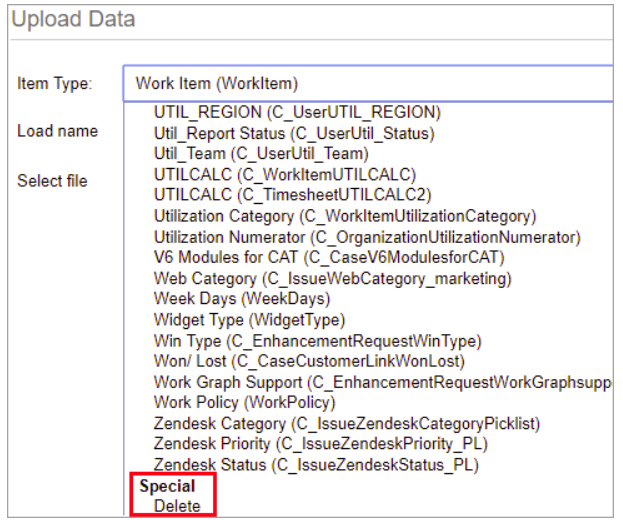
- In the Data Loader app, open the Item Type drop-down list, scroll to the bottom of the list, and then select Delete.
- In the Excel file, include the EntityType (such as task, resource, etc.) and its related ExternalID.
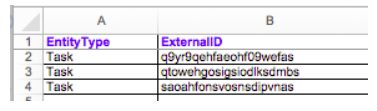
- To obtain the External ID of an item, do one of the following:
- Add the External ID to your grid view in AdaptiveWork, and then export it to Excel.
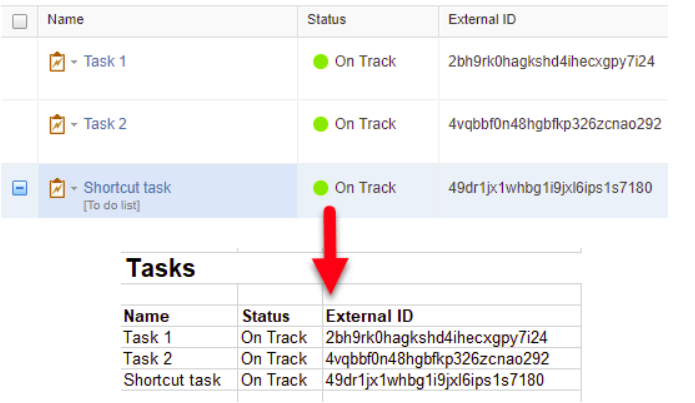
- Generate a report from the Reports module that includes External IDs.
- Use the Excel Add-in to extract External IDs.
- Add the External ID to your grid view in AdaptiveWork, and then export it to Excel.
- Upload the file as you would for adding and editing data. Select your Excel file and click Upload. See Adding Data.
Undo an Upload
At any time, you can undo an entire upload and delete all the records that were inserted in a specific load batch.
NOTE
The Undo feature works only on inserted records and not on updated ones.
To undo a specific load:
- Click Advance.
- Click Undo Load.
- Search for the relevant load transaction.
- Click the Undo button for the specific load, and wait for the record to be deleted.
API Support
You can also activate this load process by invoking a REST API web service.
To activate this functionality, please contact your AdaptiveWork representative.
Example Files
Excel file examples are available for download.
Considerations
Data uploaded using the Data Loader must comply with all of the constraints that are imposed by the product user interface.